How to turn a photo into a video on an iPhone
Nothing in iOS generates new movement from a still, so the job belongs to an app. What the phone can already do on its own, what a generation app adds, and the order to do it in so you do not waste a run.
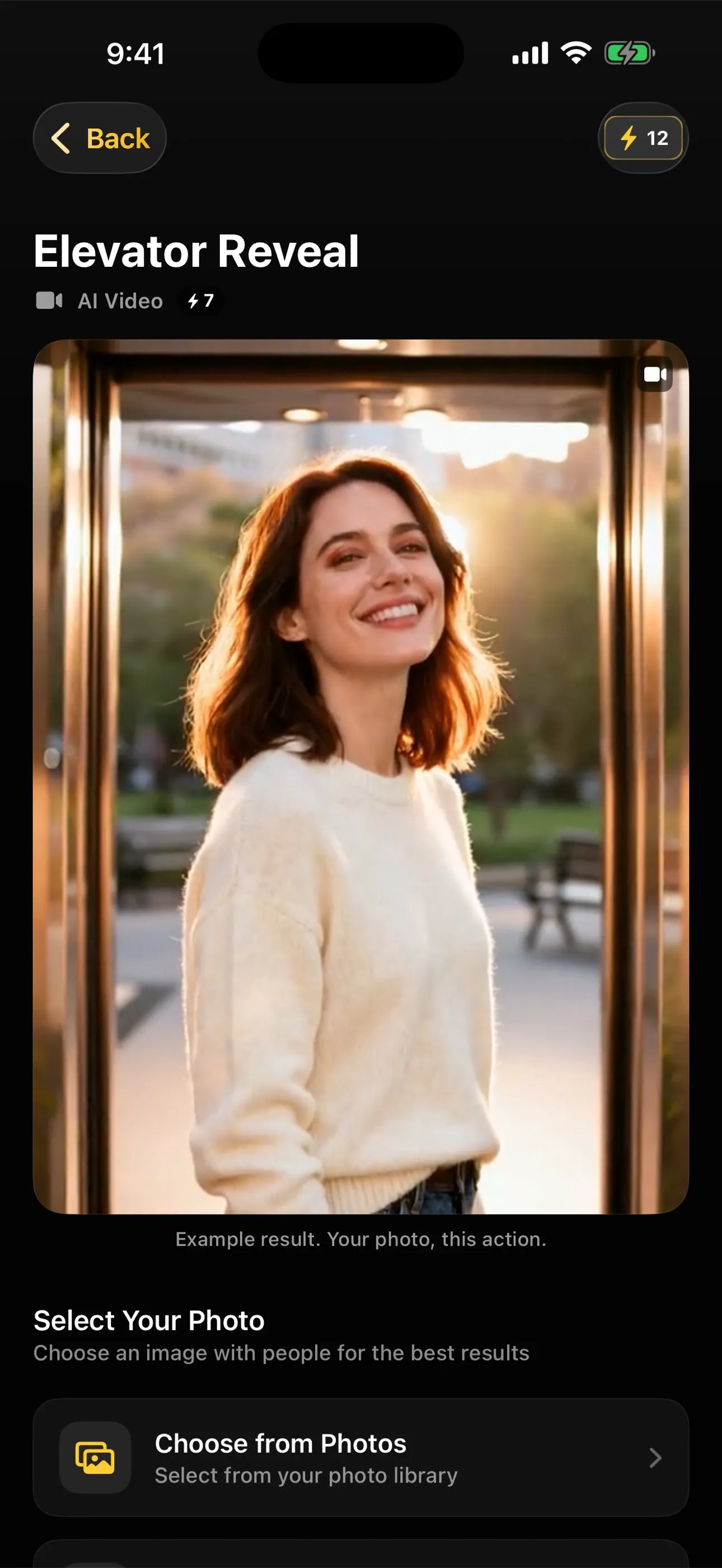
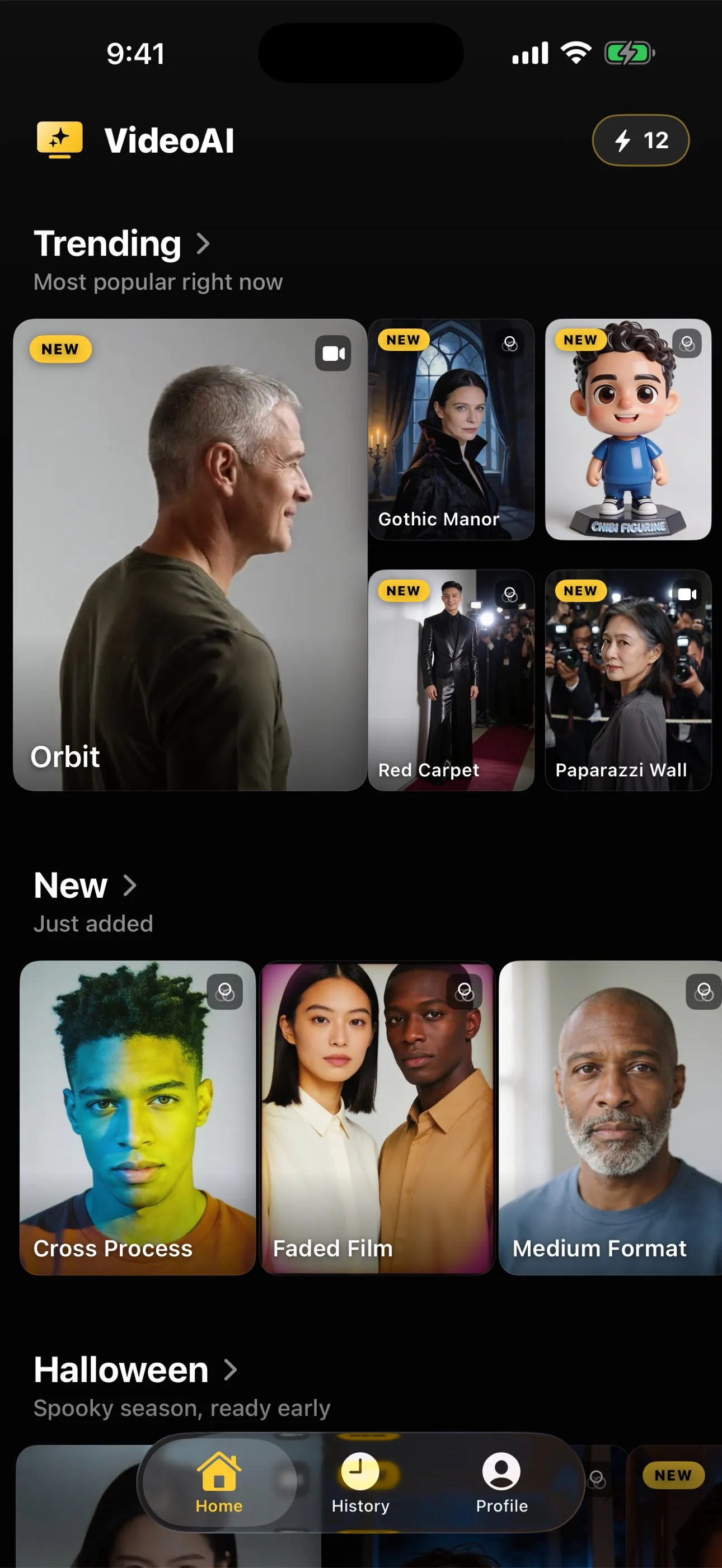
Nothing in iOS generates new movement from a still, so you need an app that sends the photograph to a generation model and hands a clip back. In AI Video that is three steps: pick the photo, pick the action, wait for the result. Photos and iMovie only pan across a still, which is a different thing.
Two different things go by the same name
Someone searching this phrase usually wants one of two outcomes, and they are not close relatives.
The first is a still photograph given motion by moving the frame across it: a slow push into a face, a drift from one side of a group to the other, often with music under it. The picture never changes. The camera, in effect, moves over it. This is decades old, it is what a slideshow does, and your phone already does it.
The second is a still photograph given movement that was never in the picture: the person waves, walks, dances, turns. There is no footage of that anywhere, so a model has to invent it, frame by frame, from the one image you gave it. This is what people mean when they say an AI video, and it needs a tool built for it.
Deciding which one you want takes ten seconds and saves you from installing something that does the other one.
What the iPhone already does, at no cost
If the frame-moving version is what you are after, you have it already. The Photos app assembles memories that drift across your pictures and set them to music. iMovie lets you drop a single image on a timeline and set where the pan starts and ends. And if the picture was taken as a Live Photo, there is genuine recorded movement in it already, captured around the moment you pressed the shutter, which you can save out as a short video.
None of these invent anything. That is their strength as much as their limit: nothing in the result can be wrong about the person, because nothing about the person was generated. If your goal is a tasteful moment of motion for a card or a story, try these before you pay anything.
The generated route, in the order that wastes the least
Once you want real movement, the sequence matters, because every attempt costs something and the expensive mistakes all happen before you tap generate.
One. Choose the photograph first, not the action. This is the step people skip and the one that decides most of the outcome. A photograph can be a favourite and still be poor source material: the two qualities are unrelated. Front-on, evenly lit, the person large enough in the frame, a background that is not competing with them. The full method is in choosing a photo that will animate well, and it takes about a minute to run through.
Two. Match the action to the crop you actually have. An action that travels needs the whole body in frame. If your picture stops at the chest, the model has to invent legs it never saw, and invented limbs are the fastest route to a result that looks off. How much of the body the photo needs works through this properly. Every action page in the library states the crop it expects, which is worth reading before rather than after.
Three. Hand it over and wait. The photograph is uploaded to the generation service, the model runs, and the result comes back. Nothing about this happens on your phone, whatever the phone’s speed, which is covered in how long an AI video takes to generate.
Four. Keep it, or run it again. A motion action returns roughly five seconds at 720p. Results collect in the app’s history, so nothing you generate is lost while you decide. Because the clip is generated fresh each time, the same photograph and the same action will not give you the same result twice.
What decides whether it looks right
Four things, in the order they usually go wrong. The crop, first, because an action asking for movement the picture never showed has to build that part from nothing. The background, second, because a busy pattern behind a moving arm is a boundary the model has to redraw in every frame. The light on the face, third, since even, front-on light is what makes an expression readable enough to move. And the size of the action you picked, last, because a small gesture asks for very little invention and a full routine asks for a great deal.
Why your animated photo looks wrong takes each of these apart with the symptom you can recognise in your own result, which is faster than guessing at settings.
What this costs you, plainly
AI Video is free to download on iPhone and iPad. Past that, nothing is free: there is no trial and no daily allowance of free results. Generating anything, a clip or a restyled picture, spends credits, and credits come from a credit pack you buy once or from a subscription that refills a balance on a schedule. No figure appears on this site, because the App Store listing and the app itself are the only two places that can state it in your currency and still be right tomorrow.
The practical consequence for a first attempt is that retries are not free either. That is the whole reason the photograph comes first in the sequence above. What it costs to make an AI video from a photo goes through the model properly, and doing it without a subscription covers the one-off route.
What it will not do
It will not recover footage. There is no video of that moment hiding inside the photograph, and the clip you get is a plausible illustration of movement, not a recording that was there all along. Hands are the reliable weak point across every tool in this category, and a likeness drifts the further a body has to move through space the picture never showed. The library’s own notes on the limits say this in full rather than burying it.
It also will not fix the source. A creased print, a screenshot of a screenshot, or a file compressed twice by two messaging apps gives the model less to work with, and no number of retries puts detail back. If the original is an old print, repairing the scan first does more than anything else: should you restore a photo before animating it covers when that is worth the extra step.
The short version
The phone can move a frame across a still today, free, in apps you already have. Only a generation app can add movement that was never there, and it does that by sending your photograph to a service and paying for the run. Choose the picture before the action, match the action to the crop you have, expect a short clip rather than footage, and read the action page before you spend anything.
Common questions
- Can the iPhone turn a photo into a video without any app?
- It can put a still into motion, which is not the same as generating movement. Photos builds slideshows that drift across your pictures, iMovie has a pan and zoom setting you can apply to a single image, and a Live Photo already holds a short recording captured around the shutter. All three move the frame or play back something real. None of them invents a movement the photograph never contained.
- What do I actually need to generate movement from a still?
- An app that sends the photograph to a generation model and sends a result back. The work does not happen on the phone, because the models that do it are far too large for one, so any app in this category is uploading your image to a service and waiting on it. AI Video is the one whose catalogue this site documents.
- How long is the clip I get back?
- About five seconds, at 720p, for a motion action. That is a property of the model rather than a setting you choose, and it is why these clips suit a message, a post or a card rather than anything that needs to run for a while.
- Do I get the same result if I run the same photo twice?
- No. The result is generated fresh each time, so two runs of one photograph and one action give two different clips. That is worth knowing before you decide a photo does not work, because a second attempt sometimes lands better than the first, and worth knowing before you spend, because each attempt costs.
- Does it work on an iPad as well?
- Yes. AI Video runs on iPhone and iPad, and the steps are identical on both, since the generation happens on a service rather than on the device you are holding.