Can you animate a blurry photo? It depends which kind of blurry
Blurry, low res, and old are not the same problem, and they do not have the same answer. A practical way to work out which one you actually have before you spend a generation on it.
“Blurry” covers three different problems, and only one of them is really about the photograph you are holding. The other two are about the copy you ended up with and the file size you started from. Before deciding a photo will not animate well, it is worth working out which one you actually have, because the answer is different for each.
Soft focus is usually fine
A photo that is gently out of focus, the kind you get from a wide aperture, a phone hunting for autofocus in low light, or a slightly missed shot, is the best case of the three. The model is not grading your photograph for sharpness the way a printer or a photo app would. It is working out the shape of a face and the light across it well enough to move it, and a softly focused face usually still gives it enough to work with.
This is worth saying plainly because it runs against instinct. People assume a crisp photo is a safe photo and a soft one is a risk. In practice, a soft but evenly lit, front-on face tends to animate more convincingly than a technically sharp face lit from a bad angle. If your only concern is that the photo looks a little dreamy when you zoom in, it is very likely worth trying.
Motion blur in the original is the harder case
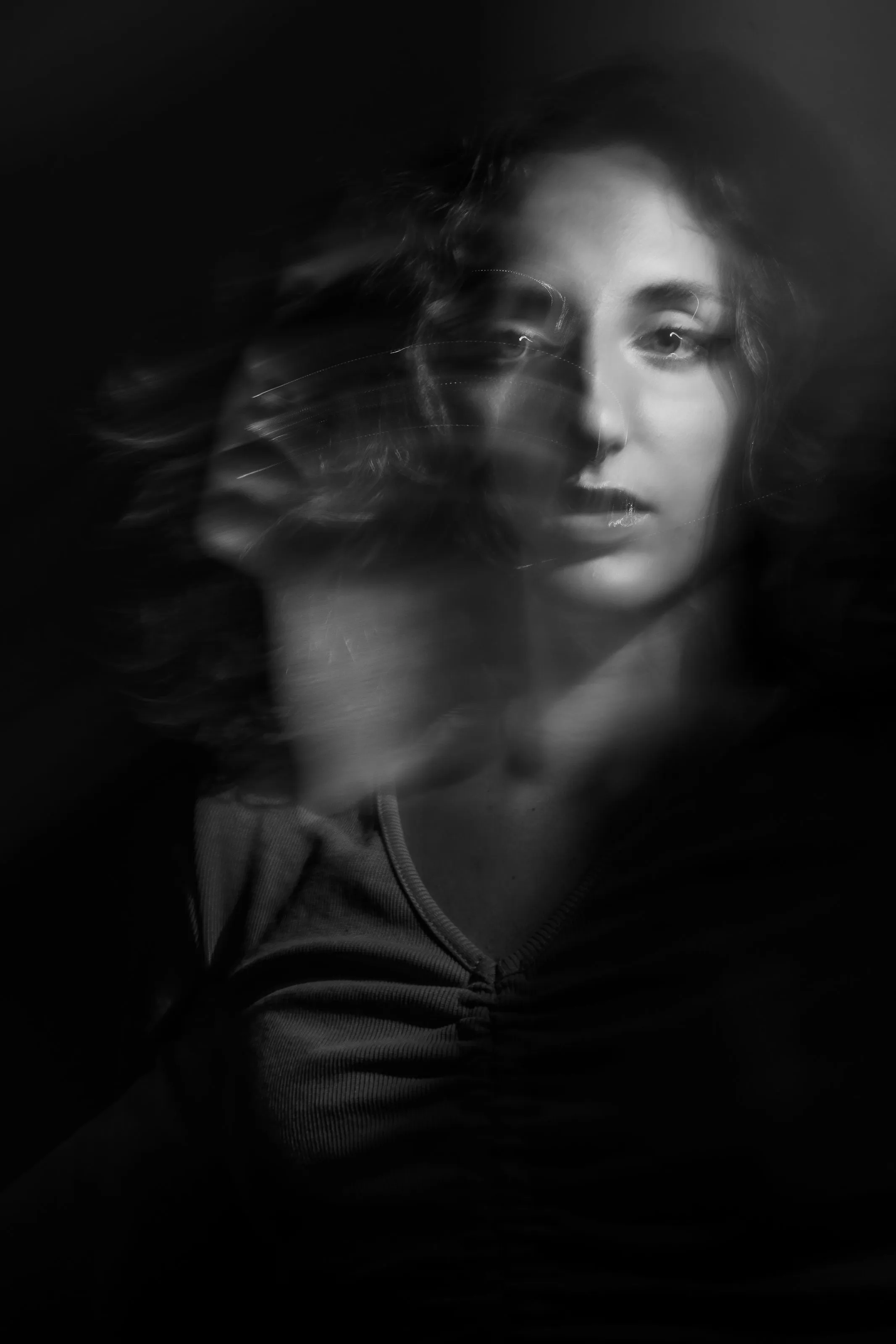
This is different from soft focus, and it is worth telling apart. Motion blur happens when the subject or the camera moved during the exposure, so instead of one soft face, you have a face smeared across several positions in the same frame. There is no single sharp version of that face anywhere in the file for the model to work from, because the blur is not a loss of detail, it is several moments layered on top of each other.
Small, contained motion blur, a hand mid-wave or hair caught moving, usually does not stop a photo from working, since the face itself may still be reasonably clear. Heavy motion blur across the whole face is a different matter, and it is the one case in this article where trying twice on the same file is unlikely to help, because the problem is in what the camera captured, not in anything the app is choosing to do with it.
A small file stretched larger is its own problem
The third kind is not really blur at all, it is a small image enlarged past the detail it actually contains, so edges turn soft and blocky at the same time. This is common with a photo pulled from an old phone backup, a photo saved out of a group chat, or a thumbnail that got treated as if it were the original. The file might look sharp enough at the size you are used to seeing it and turn soft the moment it fills a screen.
The test is simple: open the photo at the size it will actually be judged at, which is roughly your phone screen, and look at the eyes. If they read as eyes rather than as a pale smudge, the file has enough detail. If they do not, no amount of retrying the generation will put back detail the file never had.
The most common fix is not a tool, it is finding the original
Before assuming any of the three problems above is unfixable, it is worth spending five minutes looking for a better copy of the file. The most common reason a photo looks worse than it should is not the camera that took it, it is the path it travelled afterwards. A photo posted somewhere, saved from there, sent through a message thread, and saved again has usually been compressed several times by several different pieces of software, and none of those steps can be undone later.
Check a cloud backup, an old phone still sitting in a drawer, or whoever originally posted or sent the photo, before working with the copy you happen to have open. This single step resolves more disappointing results than anything else in this article, mostly because people default to the version that is easiest to find rather than the version that is actually best.
Where restoration helps, and where it cannot
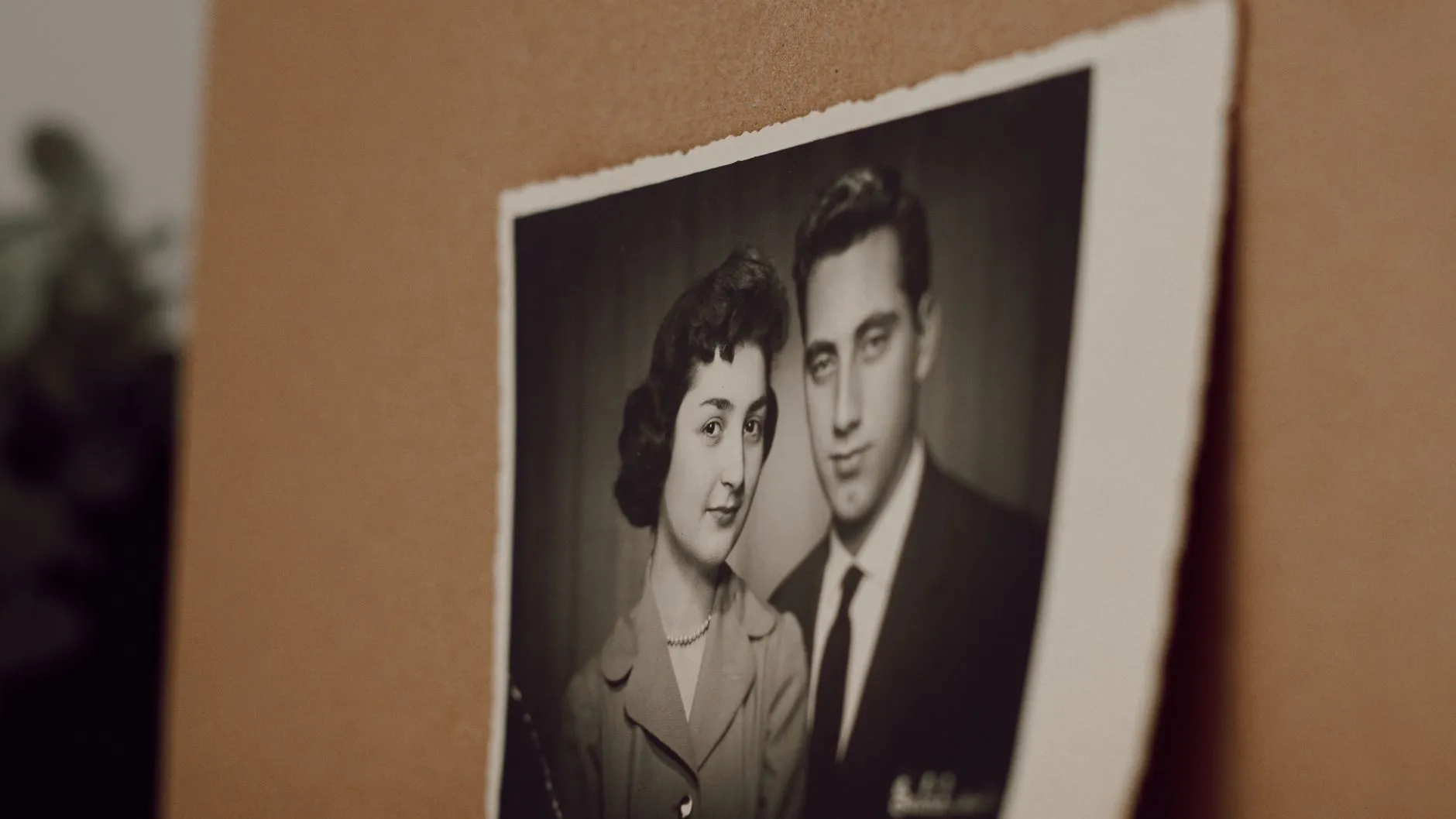
If the photograph is an old print rather than a digital file, a different version of this problem shows up: fading, creases, scratches, and a colour cast. These are not the same as blur, but the model treats them the same way, as part of the picture, and it carries them into every frame it generates. Our sister site has a practical guide to restoring an old or damaged photo before animating it, and the short version is that repairing the scan first genuinely helps, because you are handing the model a cleaner picture to begin with.
What restoration cannot do is add detail that the original capture never had. If a face was never sharp, in focus, or clearly lit, no repair tool recovers information that was not recorded, and animating the repaired file will not look meaningfully different from animating the original. It is worth trying once, since results vary more than people expect, but it is not worth repeated attempts on a file that was always going to be soft.
What to try first
A reasonable order, if you are not sure which of the three problems you have:
- Find the original file rather than a copy of a copy. This alone fixes most cases.
- Open the result at the size it will actually be viewed, and check the eyes specifically, since that is where softness shows first.
- If it is an old print with fading or damage rather than digital blur, restore it before animating it.
- If none of that helps and the face is genuinely a soft smear at normal size, pick a different photograph rather than repeating the same one. A small, still-life expression like waving or laughing asks the least of a face, so it is the fairest test if you want to see what your photo can actually do.
Said plainly
The model works from one still frame and invents the motion around it, so it needs that one frame to give it something real to build from. A softly focused photo still gives it that. A heavily motion-blurred face, or a file too small to show the eyes clearly, gives it far less, and the result will show it.
For the rest of what makes a photo a good starting point, not just sharpness but crop, light, and framing, choosing a photo that will animate well covers the full method.
Common questions
- Can you animate a blurry photo?
- It depends what kind of blurry it is. A photo that is slightly soft from a wide aperture or a phone's autofocus missing will usually animate fine, since the model works from shape and light more than from pixel sharpness. A photo with real motion blur in the original, where the person or the camera moved during the exposure, is a harder case, because the model has no sharp version of the face to build from. A small file stretched up to a bigger size behaves differently again.
- Why does my old photo look blurry on my phone but the print looks fine?
- This is usually not the photo, it is the copy. A photo of a photo, a screenshot of something posted elsewhere, or a file that has been resaved by two or three different apps loses real detail at each step, and none of it comes back. Track down the original file, whether that is a negative, a print, or the first digital copy, before deciding the photograph itself is the limit.
- Does restoring a photo help before animating it?
- For fading, scratches, creases, and colour cast, yes, genuinely, because the model treats those as part of the picture and carries them into every frame. For a photo where the face itself was never sharp, a restoration cannot add detail that was never captured, so it will not change the animated result much.
- Is there a resolution below which a photo will not work at all?
- There is no fixed number the app enforces. The more useful test is whether you can make out the eyes as eyes when the photo fills your phone screen. If the face is a soft, low detail smear at that size, animating it will produce a soft, low detail smear that moves.